I needed Windows for a test and did not want to give it a host of its own. My homelab runs Ubuntu, so VirtualBox was an option, but I rarely open it, and I did not want another VM stack to keep around for one test. I wanted Windows on the machine I already had, and an easy way to get rid of it later.
dockurr/windows gave me that. It runs Windows in a Docker container, with QEMU/KVM underneath and TPM and Secure Boot emulated, so Windows 11 installs without workarounds. When I am done, I remove the container, empty one folder, and I am back to a clean slate.
There isn’t much to set up, just a container, a shared folder, and a few ports. The install is what takes time.
Prepare the host
CPU virtualization has to be on (AMD-V or VT-x) and /dev/kvm has to exist. Docker has to be running, and your user has to be in the docker group. You do not need the kvm group, because the Docker daemon opens /dev/kvm itself. ls -l /dev/kvm should show the device node. If it is missing, virtualization is off in the firmware or the KVM module is not loaded.
Run the container
I keep the disk image and the shared folder in my home directory.
mkdir -p ~/windows ~/winshareThen run the container.
docker run -d --name windows \
  --device /dev/kvm --device /dev/net/tun --cap-add NET_ADMIN \
  -e VERSION=11e -e RAM_SIZE=8G -e CPU_CORES=4 -e DISK_SIZE=80G \
  -e COMMAND='powershell -c "Add-WindowsCapability -Online -Name OpenSSH.Server~~~~0.0.1.0; Set-Service sshd -StartupType Automatic; Start-Service sshd; New-NetFirewallRule -Name sshd -DisplayName sshd -Protocol TCP -LocalPort 22 -Action Allow -ErrorAction SilentlyContinue"' \
  -p 127.0.0.1:8006:8006 -p 127.0.0.1:3389:3389 -p 127.0.0.1:2222:22 \
  -v ~/windows:/storage -v ~/winshare:/shared \
  --stop-timeout 120 dockurr/windows
The flags map to the pieces. /dev/kvm is the accelerator, and /dev/net/tun plus NET_ADMIN give QEMU the network device it needs. The three published ports are the web console, RDP, and SSH, all on loopback. The two volumes hold the disk image and the share, and --stop-timeout 120 gives Windows two minutes to shut down.
VERSION=11e is the Windows 11 Enterprise Evaluation, free for 90 days, after which it stops working properly. Use VERSION=11 for Pro with your own key. The container is not limited to Windows 11 either. The repo also supports Windows 10 and 8.1, older releases down to 95, and several Server builds, and VERSION can point at a custom ISO for anything not in the list. I only tried 11. The first run downloads a 7.7 GB ISO from Microsoft and installs unattended. In total it took about 30 minutes here.
COMMAND runs once at the end of the installation. Mine enables the OpenSSH server. The default login is Docker / admin, and you can change it with USERNAME / PASSWORD.
Connect to the guest
There are a few ways in.
| What | Where |
|---|---|
| Screen in a browser | http://127.0.0.1:8006 |
| RDP (local) | 127.0.0.1:3389 |
| RDP (Tailscale) | 100.x.x.x:3389 / <tailscale-host>:3389 |
| SSH | ssh -p 2222 Docker@127.0.0.1 |
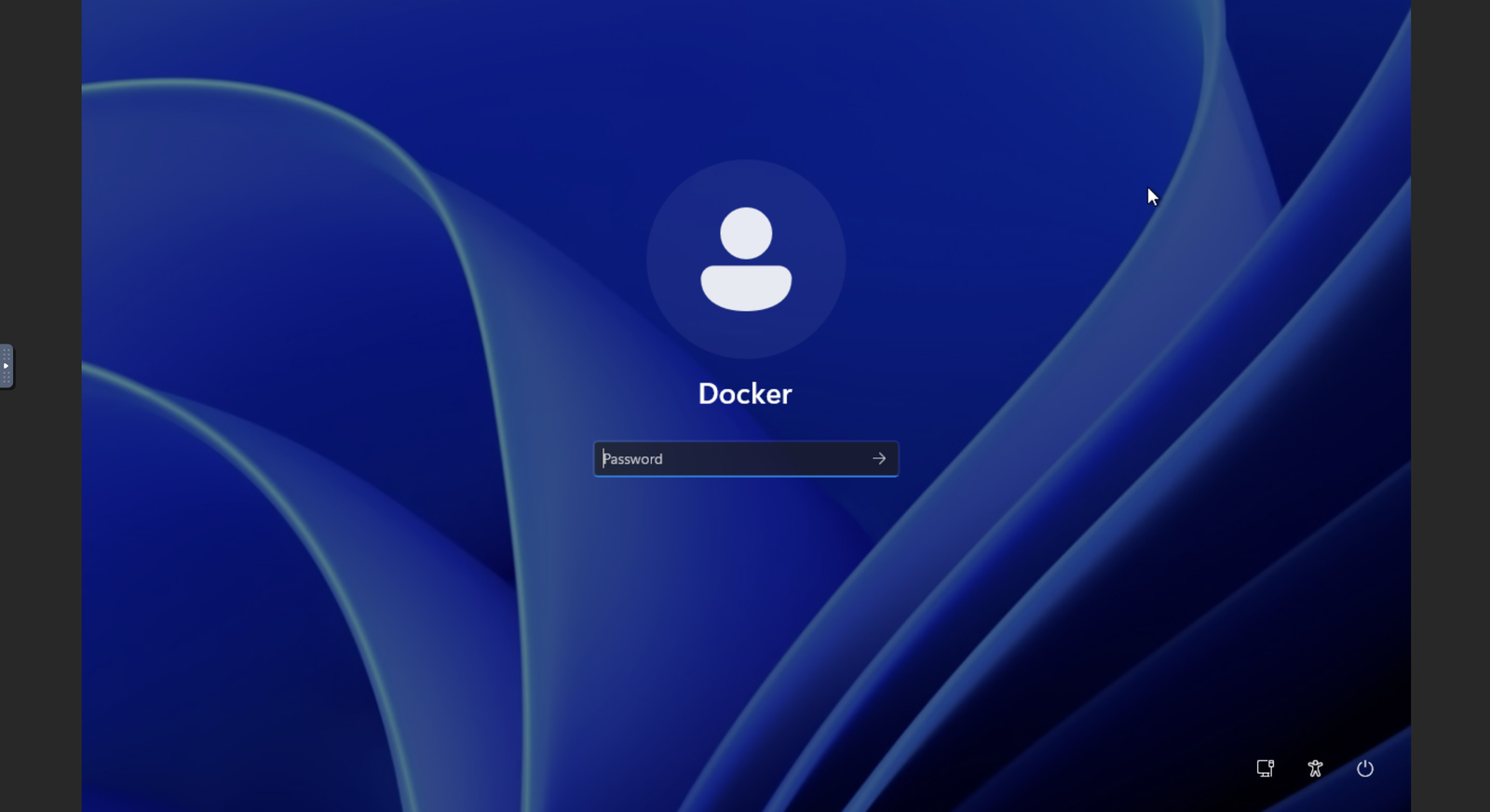
You can also access Windows from a browser. The console asks for the Windows login before it shows the desktop.
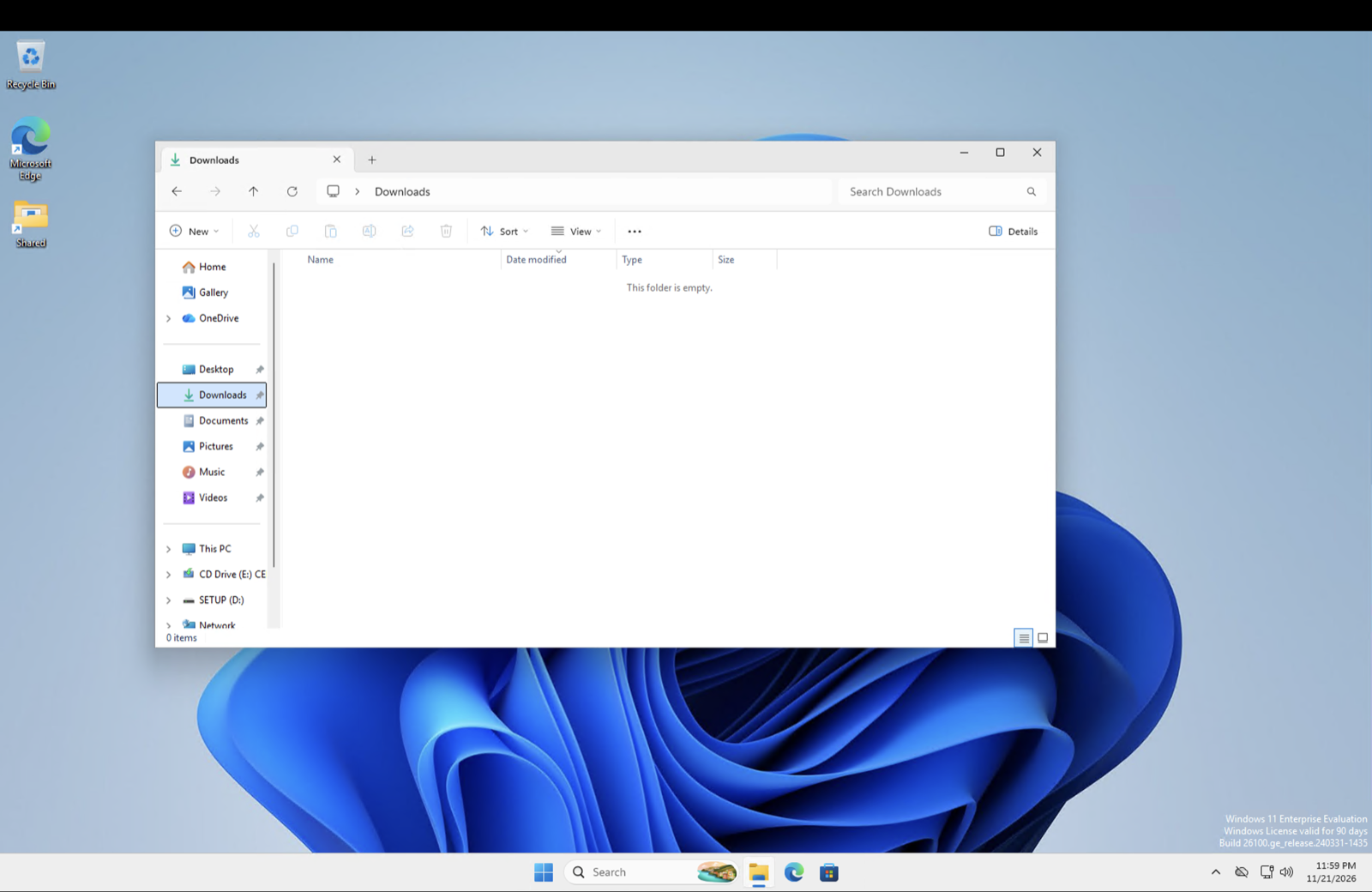
The browser is fine for a quick check, but RDP is the better way to use it day to day. It is more responsive and supports clipboard sharing. I connect to RDP with Windows App. This is the desktop through Windows App, with the Shared folder on it.
When I’m away from the home network, I reach RDP through Tailscale. It needs no tunnel, and the guest is not reachable from the LAN. Turn it on from the host.
tailscale serve --bg --tcp 3389 tcp://127.0.0.1:3389To turn it off, run this.
tailscale serve --tcp=3389 offGet a file in
The container only owns the disk image and the shared directory. docker cp writes inside the container and never reaches the guest’s filesystem, so the shared folder is how files get in. ~/winshare appears in Windows as \\host.lan\Data, and on the desktop it also shows up as the Shared folder and drive Z:.
To copy a file from the homelab host, run this.
cp app.exe ~/winshare/Or run the executable over SSH.
ssh -p 2222 Docker@127.0.0.1 '\\host.lan\Data\app.exe'Over SSH, Z: shows up as “Unavailable”, so use the UNC path. GUI apps started this way run in a hidden session, so start those from RDP or the browser screen instead. docker exec windows ... gives you a shell in the Linux system that runs QEMU, not in Windows.
If you want the app in a real desktop session, copy it to a local path and unblock it first.
copy \\host.lan\Data\app.exe C:\ProgramData\app.exe
Unblock-File C:\ProgramData\app.exe
Windows remembers that the file came from another machine. It keeps that in a hidden stream called Zone.Identifier, and that’s what triggers the warning before you open it. Unblock-File clears the mark. If you skip it, Windows may refuse to run the executable or Defender may quarantine it.
docker stop windows shuts Windows down cleanly and can take up to 120 seconds. docker start windows brings it back, but the container does not start on its own after the host reboots. If you want it back automatically, add --restart unless-stopped to the run command. docker logs -f windows is there when something hangs.
To rebuild from scratch, remove the container.
docker rm -f windowsThen empty ~/windows and run the create command again.
Graphics are basic 2D only, with no GPU acceleration. Windows defaults to Pacific time, so change the timezone in the settings.