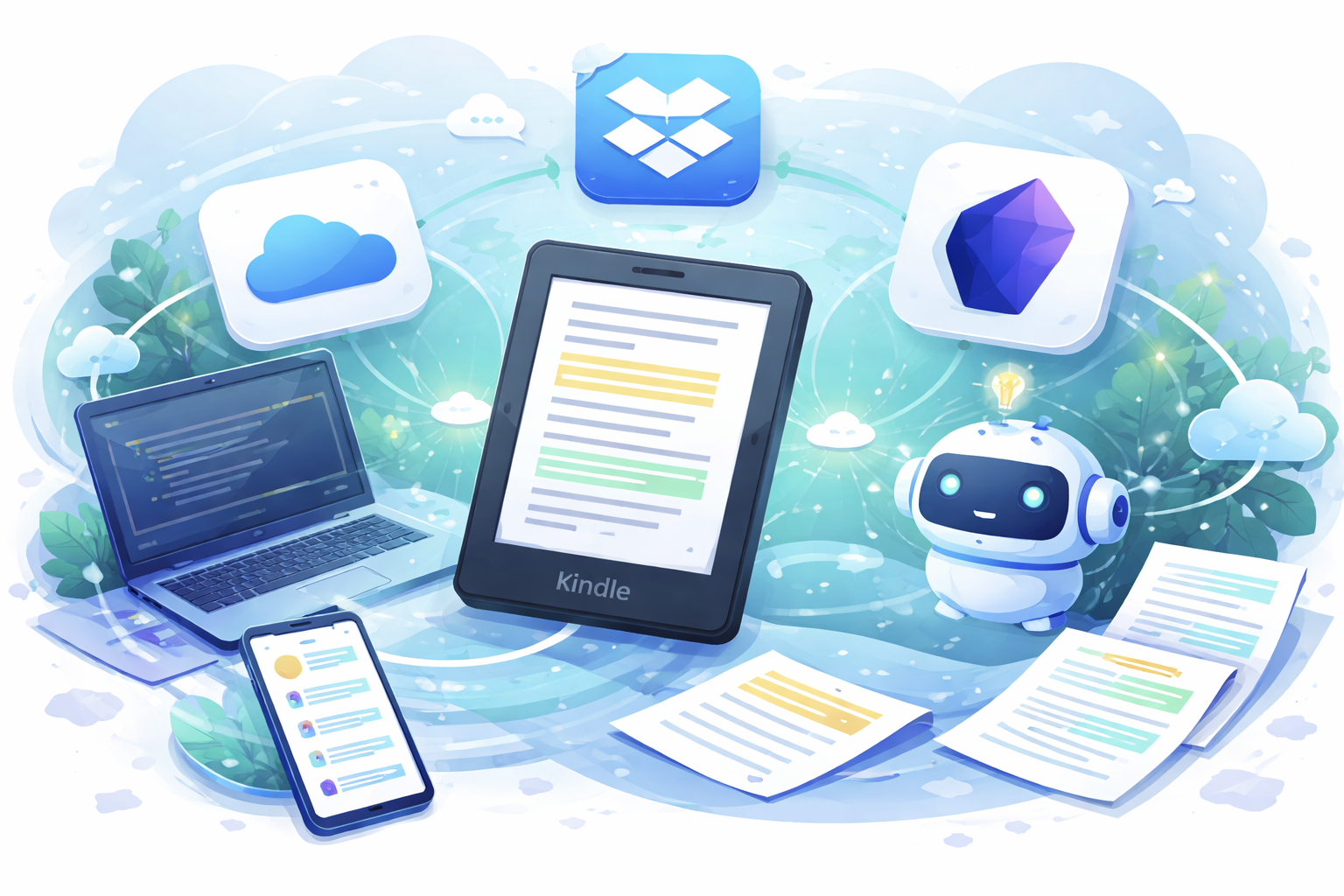
Everyone knows OpenClaw, right? It’s one of the most popular AI assistants that has been gaining massive hype over the past few months. Its GitHub stars even surpassed Kubernetes a project that has been a cornerstone of the tech ecosystem for more than 10 years! It really feels like we’re entering the era of fully autonomous AI systems. Now almost anyone can build things that previously required deep expertise (well… maybe not anything 😄).
That said, I still believe fundamental knowledge is important. AI is ultimately just a tool a very powerful one that can help us achieve 10x productivity, but understanding the basics still matters.
Will AI replace humans? If that were the case, who built AI in the first place? Humans.
AI will continue to improve every day, and we’re seeing how fast new models are evolving. But ultimately, AI is still a system created by humans, designed to assist and amplify what we do. In the past, finding information meant searching, reading multiple sources, and understanding them one by one. Today, with a simple prompt, AI can generate answers instantly with almost no effort. But this convenience also raises an important question:
Do we still care about what’s happening behind the scenes?
Information generated by AI can sometimes be misleading especially if the prompt isn’t clear or well-structured. Understanding the fundamentals still matters. Now imagine using AI as part of our daily workflow. Information today is everywhere and often scattered. Organizing it manually can take hours. Just imagine spending an entire day collecting notes, sorting them, and categorizing everything. That’s where AI can become truly powerful not by replacing us, but by helping us manage knowledge, organize information, and think more effectively.
Seeing the massive amount of information flowing every day can make it confusing to decide which information is actually important. That’s why taking notes is still essential, especially when we want to revisit ideas later. Writing things down helps move knowledge into long-term memory, something many studies and learning methods like active recall suggest is very effective for remembering information over time.
Even though AI can summarize information quickly, I still believe the experience of reading and understanding something yourself is different from simply reading an AI-generated summary. When you read a book, you can discover insights from many small details that might not appear in a summary. Everyone also has different criteria when choosing what to read. Sometimes a book takes time to finish, but the process itself can deepen understanding. Every piece of information we consume can broaden our knowledge and when something isn’t completely clear, it often sparks curiosity pushing us to explore the topic further and learn even more.
I’ve been using a Kindle for almost three years now. One challenge I’ve faced is tracking my reading progress things like the percentage of a book I’ve completed, how fast I read, how much information I’m actually absorbing, and keeping track of important notes. Doing all of this manually can be difficult. Sometimes after finishing a reading session, the knowledge is still in my head, but recalling it later becomes challenging. I might remember the idea, but forget exactly which part of the book, which section, or which topic it came from. This becomes even more noticeable during discussions or presentations, when I want to reference something I’ve read but can’t immediately remember where it was mentioned.
That’s the main reason I decided to jailbreak my Kindle. A friend told me about KOReader, which is a pretty powerful alternative reader. It supports many document formats that the default Kindle system doesn’t handle well, since Kindle is mostly designed around content from its own store. This immediately caught my interest.
Back in December, I started following the guide from https://kindlemodding.org and tried multiple times to jailbreak my device. Unfortunately, it didn’t work. Later I realized that my Kindle had already been updated to the latest firmware (5.18.6), and at that time there was no available jailbreak method for that version.
So the only option was to wait although I had no idea how long that wait would be.

Then last week, I suddenly received a notification on my phone showing a Reddit thread that immediately caught my attention.
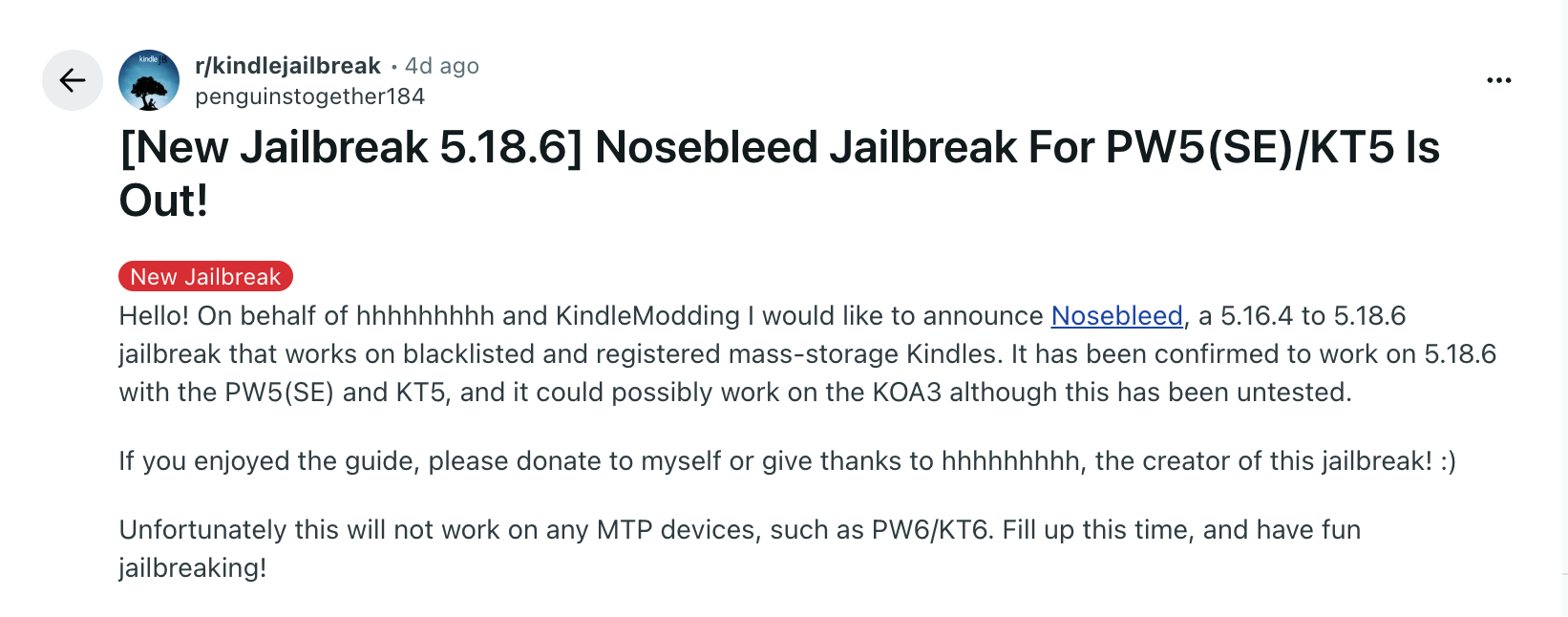
My expression be like

And on last Thursday I fucking try it and it worked!
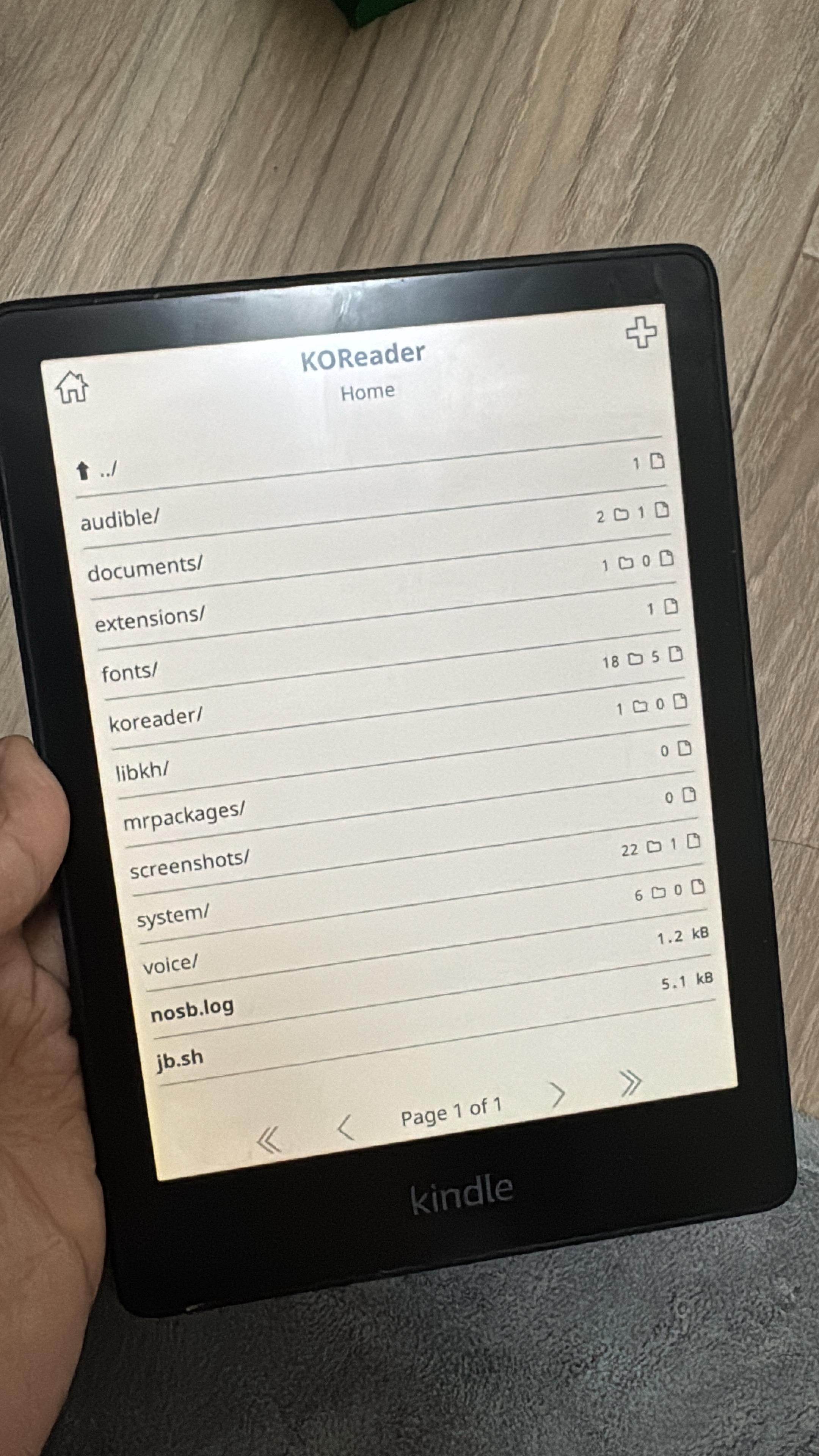
Now the next question was, what else can I do with it?
I started playing around with it to get more familiar with the system, since KOReader has many plugins that can extend its functionality. After exploring it for a while, I had an idea: how can I make my Kindle even more useful?
When reading, highlights are extremely important. They capture the key insights from a book. But what if I could go one step further and ask an AI to help me search through my highlights whenever I need them?
While exploring plugins, I found https://github.com/gitalexcampos/highlightsync.koplugin.This plugin can export highlights into a JSON file and sync them to the cloud using WebDAV or Dropbox. Using WebDAV would require additional setup and infrastructure. Since my goal was to keep the system as simple as possible, I decided to use Dropbox instead.
The free Dropbox plan provides 2GB of storage, which is more than enough for this use case. Since the highlights are stored as JSON files, it will take a very long time before the storage limit becomes an issue. Next, to configure Dropbox in KOReader, you can follow the guidance from this forum thread: https://www.mobileread.com/forums/showthread.php?t=353670
To break it down.
-
Create a Dropbox App by visiting: https://www.dropbox.com/developers/apps/create. Creating an app allows your Kindle to securely connect to Dropbox through the API, which is required for KOReader to sync files.
-
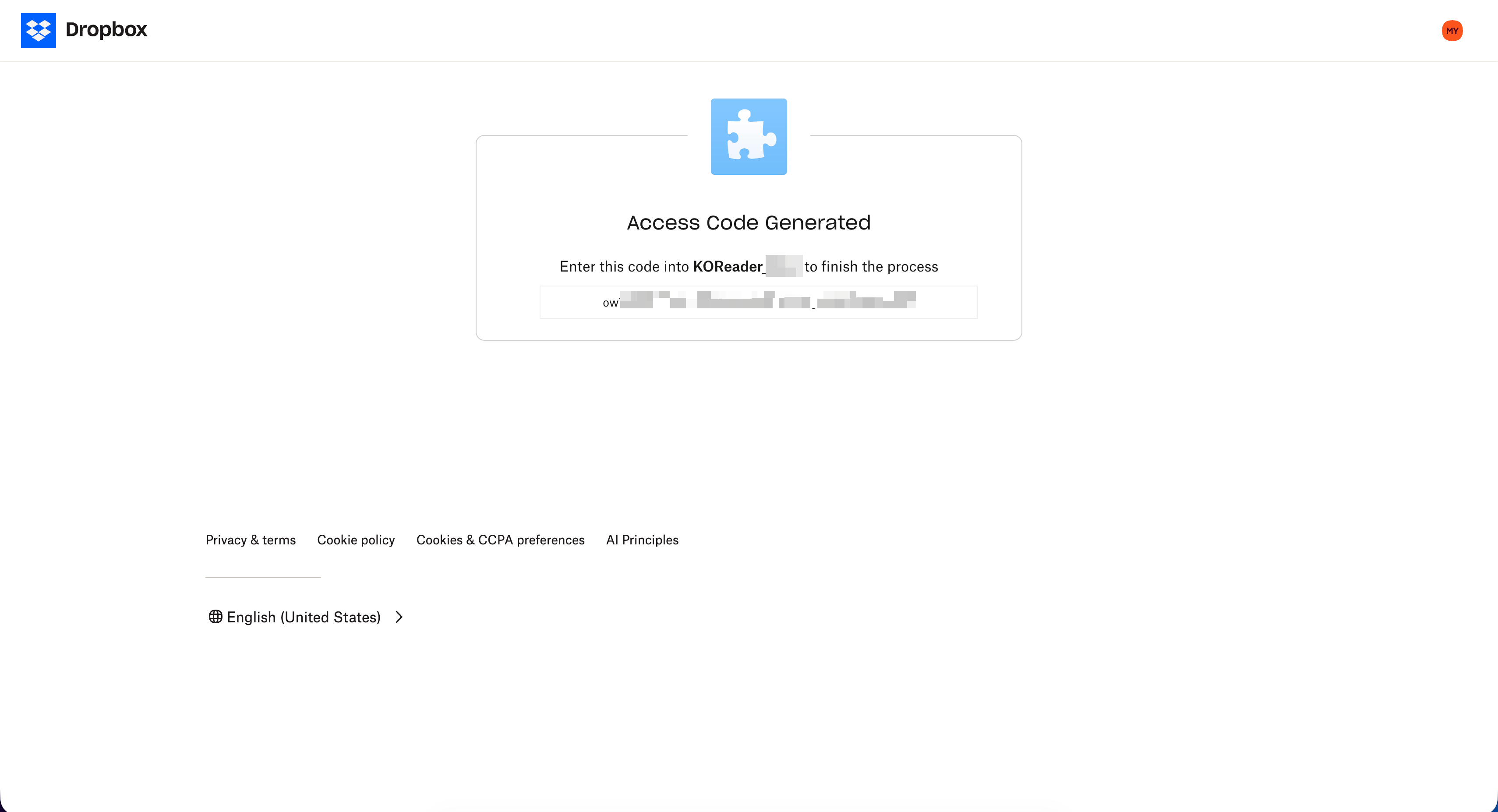
After creating the app, you’ll receive an App Key. You will then need to generate an authorization code by visiting the following URL (replace APPKEYHERE with your App Key): https://www.dropbox.com/oauth2/authorize?client_id=APPKEYHERE&response_type=code&token_access_type=offline
This authorization code will later be exchanged for a refresh token, which will be used as the password in the KOReader Dropbox configuration.
-
Obtain a refresh token using a curl request below.
curl https://api.dropbox.com/oauth2/token -d code=<AUTHORIZATION_CODE> -d grant_type=authorization_code -u <APP_KEY>:<APP_SECRET>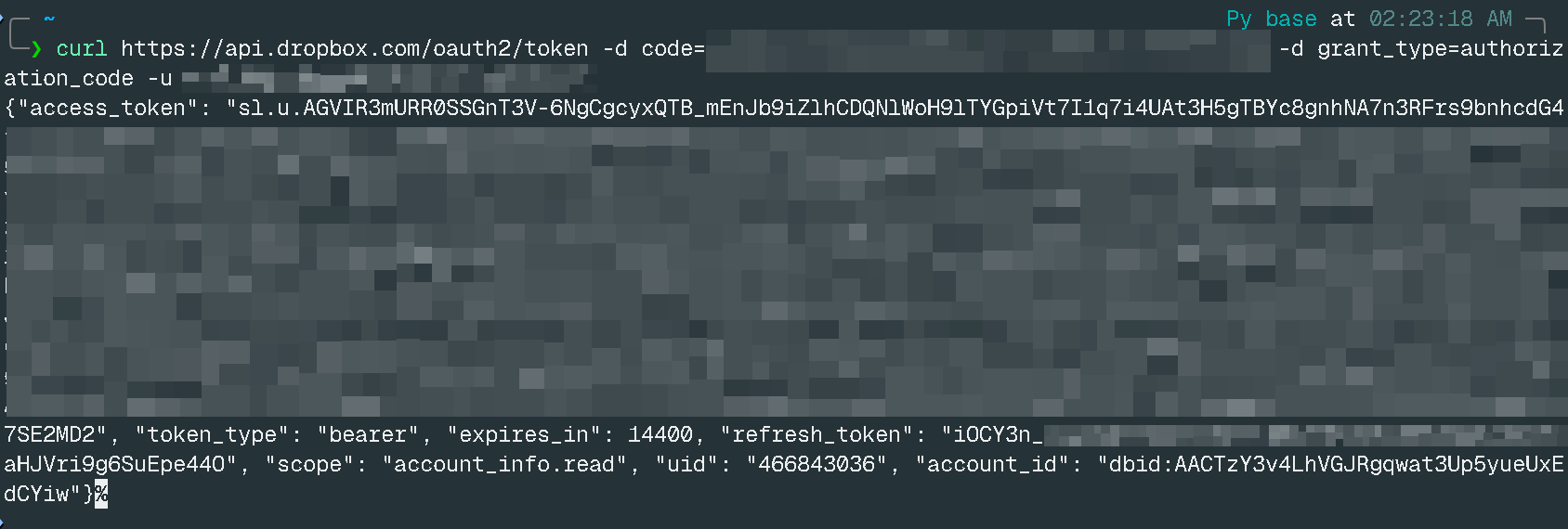
-
Once that’s done, instead of configuring everything through the KOReader UI, we can simply create the configuration file manually from our host machine and copy it to the Kindle via SSH. Create a file named
cloudstorage.lua, then copy it into the following directory on your Kindle/mnt/us/koreader/settings/-- ./settings/cloudstorage.lua return { ["cs_servers"] = { [1] = { ["address"] = "<APP_KEY>:<APP_SECRET>", ["name"] = "<APP_NAME>", ["password"] = "<REFRESH_TOKEN>", ["type"] = "dropbox", ["url"] = "", }, }, } -
After adding the configuration file, you need to restart KOReader for the changes to take effect. If the sync option still doesn’t appear as shown in the image below, try rebooting your Kindle.
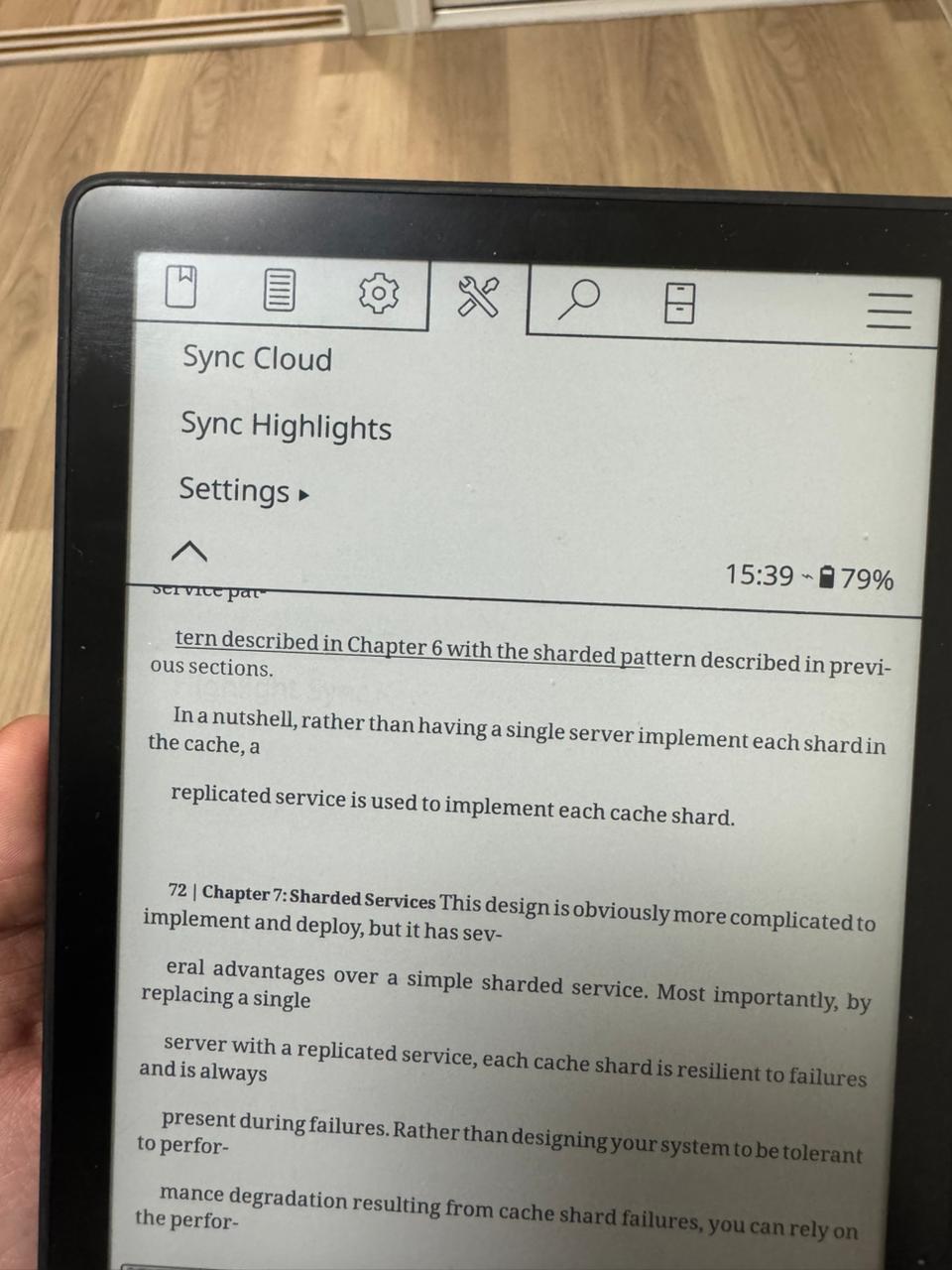
Once it appears, you can open Settings to configure when the highlights should be synced based on your preference. This allows you to control how often your Kindle uploads the highlight data to your Dropbox.
Are we done? No.
Now that we’ve finished the first part, the next step is to set up the AI agent using OpenClaw. I won’t go into the detailed installation steps here, but you can follow the official guide: https://docs.openclaw.ai/install/docker.
In my case, I chose to run OpenClaw using Docker because it simplifies the setup. When I previously tried installing it directly on my local system, I ran into several issues related to transitive dependencies, which made the process a bit hard.
To allow OpenClaw to access the highlights stored in Dropbox, we need to set up the Dropbox CLI on the server. In my case, I installed it on my home lab server by downloading it from the official guide: https://help.dropbox.com/installs/linux-commands. After following the installation steps and linking the account, Dropbox will create a new directory on your Linux system that automatically syncs with your Dropbox storage.
It will look something like this:
Dropbox/
└── Apps
    └── <APP_NAME>
        └── <BOOK_NAME>.sdr.json

3 directories, 1 file
Any files placed in this directory will be synced automatically with your Dropbox account, which means the highlight JSON files from KOReader will also appear here once they are uploaded. This allows OpenClaw to read and process the highlights directly from the local synced folder.
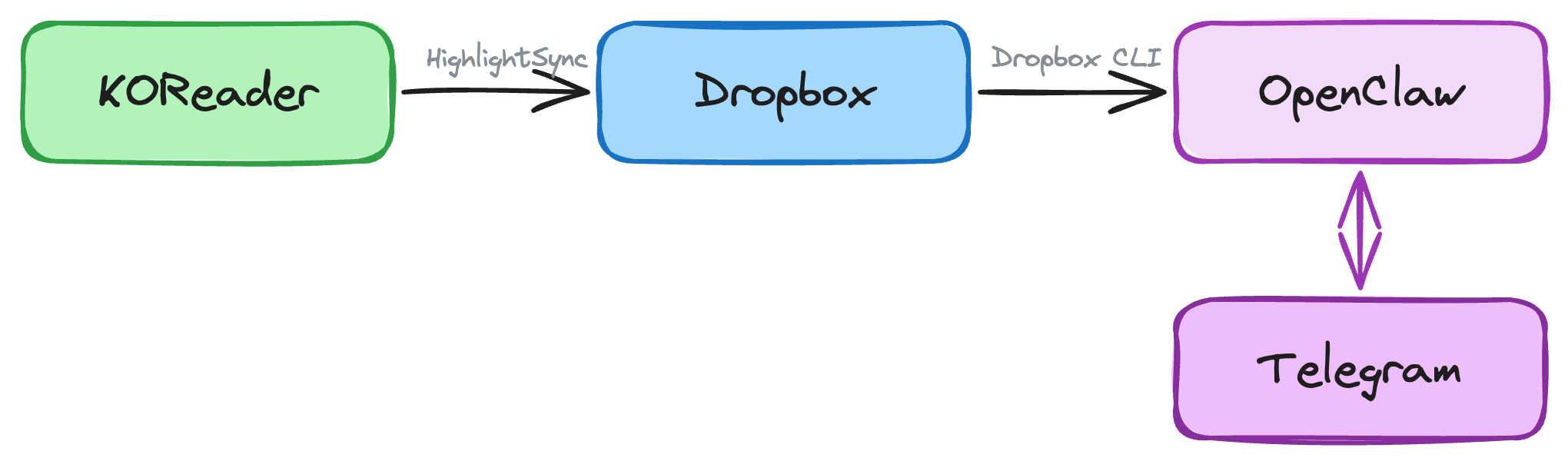
Finally, this brings us to the last part of the setup. After configuring OpenClaw, the next step is to create a custom skill for the AI agent. I built this with the help of Claude to generate the workflow logic that fits my needs, then integrated it into my AI agent. The Dropbox directory is mounted into the OpenClaw gateway container, which runs via Docker Compose. This allows the agent to access the synced highlight files directly from the filesystem.
From there, I configured the agent so it can use tools like Python3 or jq to read and process the JSON highlight files from the specified directory. Once the data is parsed, the agent can respond to my queries through a messaging platform such as Telegram. This means whenever I want to revisit a note or highlight from a book, I can simply ask the bot and it will retrieve the relevant information.
Below is the final workflow I built for this setup.
Here’s a sneak peek of how it works when I ask the agent through Telegram. If you have a lot of books and highlights over time, this setup becomes incredibly useful for quickly retrieving information.
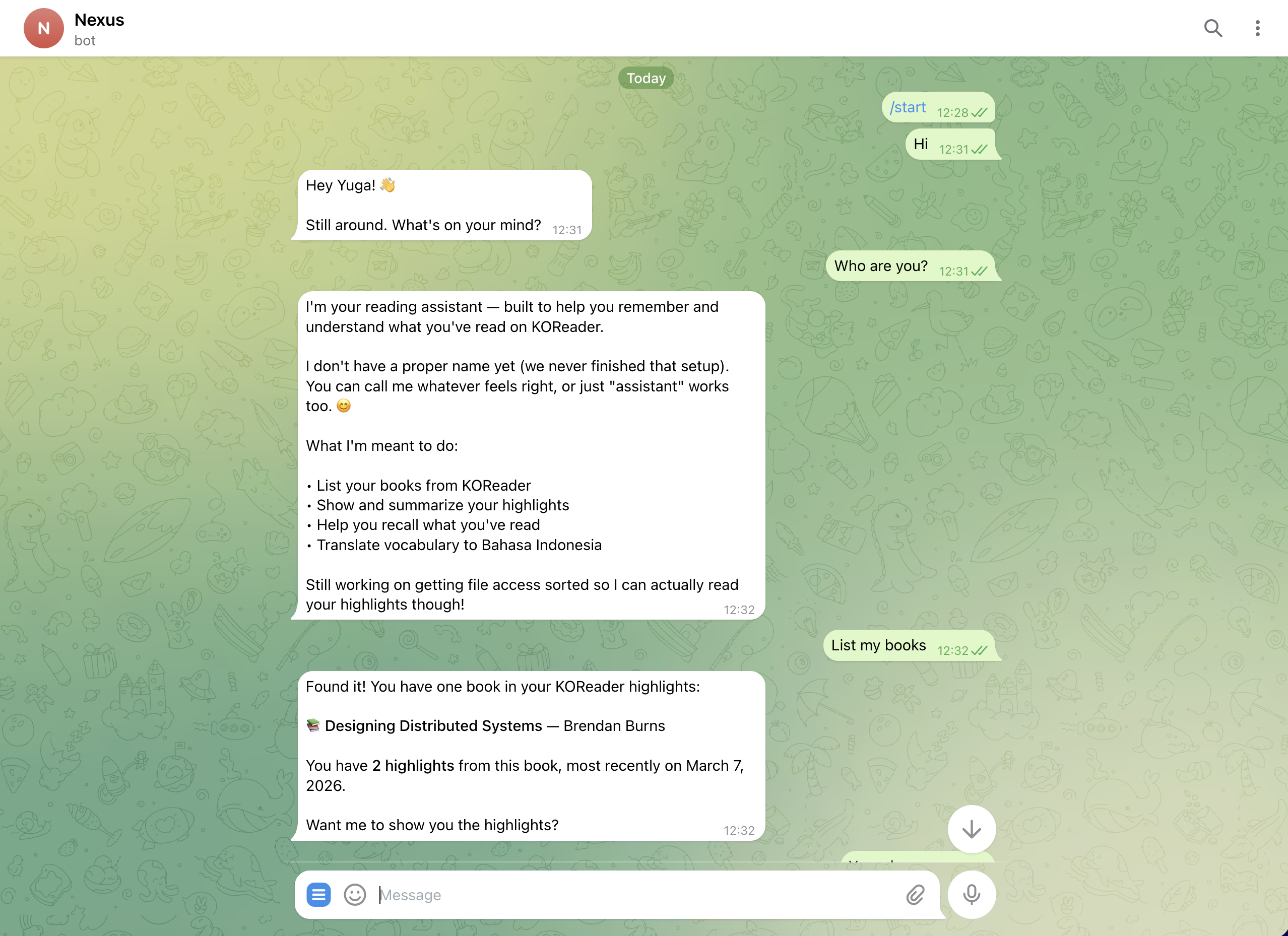
Instead of manually searching through notes, you can simply ask the agent, and it will fetch the relevant highlights from your reading history.
This setup will continue to evolve. One improvement I’m planning next is to integrate it with Obsidian, so the agent can also store and organize information automatically. The idea is to categorize highlights and notes based on topics, turning them into a more structured knowledge base.
Over time, this could grow into a much more powerful Second Brain system 😄
Note: If you’re concerned about security, it’s recommended not to use your main Dropbox account for this setup. Instead, you can create a separate account dedicated to this integration. You can also run OpenClaw in an isolated environment, either using Docker or tools like nono, to keep the system more secure and contained.