Overview
In 2026, the trend of AI sandboxes started taking off, and by now, it’s no longer surprising to see so many of them appearing. However, it’s important to understand that each sandbox has its own pros and cons, especially since the definition of a “sandbox” can sometimes blur. How is it designed? What can it do? What can’t it do? How does it protect you? For now, consider a sandbox to be a tool that runs a program in a restricted environment. Regardless of the underlying approach, its primary job is to prevent malicious programs from executing directly on our host machine. Even Docker has its own sandboxing mechanism called Docker Sandbox. Then there’s Firecracker, created by AWS, which utilizes microVMs so that it doesn’t share a kernel like Docker does and there are many more.
There is a new AI sandbox that caught my attention when it first launched. It’s called nono. By leveraging kernel-level enforcements like Landlock for Linux and Seatbelt for macOS, nono creates a tightly restricted execution environment for a process. At first glance, it feels similar to existing sandboxing tools, but over time, it has introduced interesting features that set it apart, such as:
- Credential injection, which they call Phantom Tokens (you can find more details here). While other sandboxes might implement something similar, I’ve only found it in nono so far. If anyone knows of another sandbox with this feature, please let me know! :)
- File attestation. If you’ve ever used Sigstore, you might be familiar with this concept. It’s a great idea to implement this in an AI sandbox to prevent your instruction files from getting tampered with.
- Generating a profile from an executed file. I actually had a similar idea and wanted to request this feature, but never got the chance to write the feature request. But nono did it! They introduced a new
nono learnflag in version 0.3.0.
In this blog post, I’ll be exploring the nono learn feature and how to use it effectively.
Getting Started with nono
At the time of writing, to install nono on a Debian-based system, you have to download and compile the source code, as no official .deb package is available yet. To make the installation process easier for everyone, I actually raised a PR to add a Debian packaging step to the nono repository.
Once installed, you can simply run nono -h to see the help message.
nono -hCLI for nono capability-based sandbox
USAGE
nono <command> [flags]
GETTING STARTED
setup Set up nono on this system
CORE USAGE
run Run a command inside the sandbox
shell Start an interactive shell inside the sandbox
wrap Apply sandbox and exec into command (nono disappears)
EXPLORATION & DEBUGGING
learn Trace a command to discover required filesystem paths
why Check why a path or network operation would be allowed or denied
SESSION MANAGEMENT
rollback Manage rollback sessions (browse, restore, cleanup)
audit View audit trail of sandboxed commands
trust Manage file trust and attestation
POLICY & PROFILES
policy Inspect policy groups, profiles, and security rules
profile Create and manage nono profiles
OPTIONS
-s, --silent Silent mode - suppress all nono output (banner, summary, status)
--theme <THEME> Color theme for output (mocha, latte, frappe, macchiato, tokyo-night, minimal) [env: NONO_THEME=]
-h, --help Print help
-V, --version Print version
LEARN MORE
Use `nono <command> --help` for more information about a command.
Read the docs at https://nono.sh/docsIf you’ve followed nono since its early days, you’ll immediately notice some significant changes after just a few months the project is evolving rapidly.
To understand exactly what nono learn does, we can start by checking its help menu.
nono learn -hTrace a command to discover required filesystem paths
USAGE
nono learn [flags] <program>...
OPTIONS:
-p, --profile <NAME> Use a named profile to compare against (shows only missing paths)
-s, --silent Silent mode - suppress all nono output (banner, summary, status)
--json Output discovered paths as JSON fragment for profile
--theme <THEME> Color theme for output (mocha, latte, frappe, macchiato, tokyo-night, minimal) [env: NONO_THEME=]
--timeout <SECS> Timeout in seconds (default: run until command exits)
--all Show all accessed paths, not just those that would be blocked
--no-rdns Skip reverse DNS lookups for discovered IPs
-v, --verbose... Enable verbose output
-h, --help Print help
EXAMPLES
nono learn -- my-app # Discover paths needed by a command
nono learn --profile my-profile -- my-app # Compare against an existing profile
nono learn --json -- node server.js # Output as JSON for profile
nono learn --timeout 30 -- my-app # Limit trace duration
PLATFORM NOTES
Linux Uses strace (install with: apt install strace)
macOS Uses fs_usage (requires sudo)It comes as no surprise that it relies on strace under the hood on Linux. If you’ve ever used strace for debugging or performance analysis, you know it’s the standard tool for tracing system calls and is incredibly useful for seeing exactly what a process is touching.
Reference: What problems do people solve with strace?
Unlike Docker, nono doesn’t create an entirely new, heavy environment. It doesn’t spin up a full container, drop you into a different shell, or manage the process space in a drastically different way. Instead, you just prepend nono to your regular commands. The process still runs on your host machine and can access your files and network, but only within the strict boundaries of the security policy you’ve set.
The core idea behind nono learn is to help us automatically generate a restrictive profile by observing a command’s behavior. Imagine you need to execute a command, but you aren’t entirely sure what it does. With software supply chain attacks becoming increasingly common these days, it’s healthy to be skeptical and avoid blindly trusting executables. But here’s the catch:
How do you know what a command requires without running it first?
This is exactly where nono learn comes in handy. It allows us to profile the application’s needed filesystem paths and network access without having to guess, and because it can also trace within a sandbox, we don’t need to worry as much about potential damage while building that profile.
We can run a quick test to see how a profile is generated in practice.
nono learn --json -- cat /etc/hostsWARNING: nono learn runs the command WITHOUT any sandbox restrictions.
The command will have full access to your system to discover required paths.
Continue? [y/N] y
nono learn - Tracing file accesses and network activity...
127.0.0.1 localhost
127.0.1.1 trinity
# The following lines are desirable for IPv6 capable hosts
::1 ip6-localhost ip6-loopback
fe00::0 ip6-localnet
ff00::0 ip6-mcastprefix
ff02::1 ip6-allnodes
ff02::2 ip6-allrouters
{
"filesystem": {
"allow": [],
"read": [
"/etc"
],
"write": []
},
"network": {
"outbound": [],
"listening": []
}
}
To use these paths, add them to your profile or use --read/--write/--allow flags.The output generates a simple profile fragment for the cat /etc/hosts command. Notice, however, that it only identified /etc as a read path rather than /etc/hosts specifically. If you look back at the help menu, you might remember the --all flag. Adding that flag changes the output considerably.
nono learn --all -- cat /etc/hosts...
============================================================
nono learn - Discovered Paths
============================================================
READ (1 paths)
----------------------------------------
/etc
i 5 paths already covered by system defaults
============================================================It turns out, the reason /etc/hosts wasn’t explicitly listed in the first run is because it’s already covered by the system’s default profiles. But how do we know what those default profiles actually contain?
Getting the List of Profiles
First, it helps to locate the profiles currently available on the system.
nono policy profilesnono policy: 13 profiles
Built-in:
claude-code Anthropic Claude Code CLI agent extends default
codex OpenAI Codex CLI agent extends default
default Default conservative base profile
go-dev Go SDK development profile with GOPATH and module support extends default
node-dev Node.js SDK development profile with nvm, fnm, pnpm, and npm support extends default
openclaw OpenClaw messaging gateway extends default
opencode OpenCode AI coding assistant extends default
python-dev Python SDK development profile with pyenv, conda, and pip support extends default
rust-dev Rust SDK development profile with cargo and rustup support extends default
swival Swival CLI coding agent extends default
User (~/.config/nono/profiles/):
data-processing Read from input, write to output
example-agent Template for creating custom agent profiles
offline-build Build environment with no network accessFrom here, we can examine the content of the default profile.
nono policy show defaultnono policy: profile 'default'
Description: Default conservative base profile
Security groups:
deny_credentials
deny_keychains_macos
deny_keychains_linux
deny_browser_data_macos
deny_browser_data_linux
deny_macos_private
deny_shell_history
deny_shell_configs
system_read_macos
system_read_linux
system_write_macos
system_write_linux
user_tools
homebrew
dangerous_commands
dangerous_commands_macos
dangerous_commands_linux
Signal mode: IsolatedInspecting the Profile Groups
While the profile overview doesn’t show exact file paths, it does list “Security groups”. By inspecting a specific group’s content, we can better understand the profile’s permissions. My assumption is that /etc/hosts is covered by the system_read_linux group. Checking the group explicitly verifies this assumption.
nono policy groups system_read_linuxnono policy: group 'system_read_linux'
Description: Linux system paths required for executables to function
Platform: linux
Required: no
...
/etc/hosts
...As expected, the default profile already includes /etc/hosts within the system_read_linux group. This explains why running nono learn (without --all) masks that path—it only shows paths that aren’t yet covered by your default policies.
Now, we can observe what happens when a command sends a network request to an external website.
nono learn --json -- curl https://github.com...
{
"filesystem": {
"allow": [],
"read": [
"/etc",
"/etc/gnutls",
"/home/<user>",
"/home/<user>/.config",
"/proc/sys/crypto"
],
"write": []
},
"network": {
"outbound": [
{
"addr": "20.27.177.113",
"port": 443,
"count": 1
},
{
"addr": "127.0.0.53",
"port": 53,
"count": 1,
"hostname": "_localdnsstub"
}
],
"listening": []
}
}
To use these paths, add them to your profile or use --read/--write/--allow flags.
Network activity detected. Use --block-net to restrict network access.The trace detected an outbound connection to github.com at IP address 20.27.177.113, which you can easily verify using dig.
dig github.comThe second outbound connection listed (127.0.0.53:53) is simply systemd-resolved handling the DNS resolution, which we can safely ignore.
Interestingly, the generated profile also uncovered several read paths we didn’t explicitly request. For instance, /etc/gnutls is accessed to load TLS certificates required for the HTTPS connection, and the home directory paths are checked for user-level curl configurations.
This same transparent tracing applies to writes on the filesystem as well.
nono learn --json -- touch hereWARNING: nono learn runs the command WITHOUT any sandbox restrictions.
The command will have full access to your system to discover required paths.
Continue? [y/N] y
nono learn - Tracing file accesses and network activity...
{
"filesystem": {
"allow": [],
"read": [
"/etc"
],
"write": [
"/home/<user>"
]
},
"network": {
"outbound": [],Now, this raises an interesting question.

Much like writing YARA rules for malware analysis, we can use nono to dynamically execute a dubious command and generate a behavioral profile. We can then inspect this profile to understand exactly what the command is doing under the hood, ensuring it isn’t attempting anything malicious.
Securing Developer Systems with nono
Just over the past few days, there have been several high-profile software supply chain attacks hitting critical security and development tools, from Trivy to LiteLLM, and even Telnyx. What’s next?
This got me thinking, could we leverage nono to mitigate the impact of supply chain attacks? Absolutely! The developer machine is arguably the most critical endpoint to protect. As AI agents rapidly evolve and integrate into our daily workflows, it’s easy for developers to lose track of what exact commands are executing behind the scenes. With nono, we can place guardrails around these executions to guarantee they aren’t compromising the system—potentially enforcing this sandboxing across an entire organization’s development workflow.
A typical implementation might start with establishing a baseline set of nono profiles for each project, installing them directly onto developers’ local environments and CI/CD pipelines. As a practical example, we can implement a simple developer workflow that automatically wraps common execution environments like python, node, npm, and pip with a secure nono baseline profile.
Create a profile for developer as below.
cat > ~/.config/nono/profiles/developer.json << 'EOF'
{
  "meta": {
    "name": "developer",
    "version": "1.0.0",
    "description": "System-wide developer sandbox profile"
  },
  "security": {
    "groups": [
      "deny_credentials",
      "deny_shell_history",
      "deny_shell_configs",
      "system_read_linux",
      "system_write_linux",
      "dangerous_commands_linux"
    ]
  },
  "filesystem": {},
  "network": { "block": false },
  "workdir": { "access": "readwrite" }
}
EOF
Next, we create a shell script and drop it into /etc/profile.d/. This script will automatically intercept target commands and invoke them securely via nono using our new profile.
tee /etc/profile.d/nono-preexec.sh << 'EOF'
if [ -n "$BASH_VERSION" ]; then
    _nono_run() {
        local prog="$1"
        shift

        # Skip if already inside nono to avoid recursion
        if [[ -n "$NONO_ACTIVE" ]]; then
            command "$prog" "$@"
            return
        fi

        # Skip if nono not available
        if ! command -v nono &>/dev/null; then
            command "$prog" "$@"
            return
        fi

        export NONO_ACTIVE=1
        nono run --profile developer --silent --allow-cwd -- "$prog" "$@"
        unset NONO_ACTIVE
    }

    # Wrap specific programs
    alias python3='_nono_run python3'
    alias python='_nono_run python'
    alias node='_nono_run node'
    alias npm='_nono_run npm'
    alias pip3='_nono_run pip3'
    alias pip='_nono_run pip'
fi
EOF
Finally, source the script to apply the changes to your current session.
source /etc/profile.d/nono-preexec.shTo prove that the profile is actively protecting the system, we can run a Python script that deliberately tries to read a restricted path, like an SSH private key.
python3 -c "print(open('/home/<user>/.ssh/id_ed25519').read())"/usr/lib/python3/dist-packages/apt/__init__.py:37: Warning: W:Unable to read /etc/apt/apt.conf.d/ - opendir (13: Permission denied)
apt_pkg.init_config()
Traceback (most recent call last):
  File "<string>", line 1, in <module>
PermissionError: [Errno 13] Permission denied: '/home/<user>/.ssh/id_ed25519'
Error in sys.excepthook:
Traceback (most recent call last):
File "/usr/lib/python3/dist-packages/apport_python_hook.py", line 228, in partial_apport_excepthook
return apport_excepthook(binary, exc_type, exc_obj, exc_tb)
^^^^^^^^^^^^^^^^^^^^^^^^^^^^^^^^^^^^^^^^^^^^^^^^^^^^
File "/usr/lib/python3/dist-packages/apport_python_hook.py", line 114, in apport_excepthook
report["ExecutableTimestamp"] = str(int(os.stat(binary).st_mtime))
^^^^^^^^^^^^^^^
FileNotFoundError: [Errno 2] No such file or directory: '/opt/-c'
Original exception was:
Traceback (most recent call last):
File "<string>", line 1, in <module>
PermissionError: [Errno 13] Permission denied: '/home/<user>/.ssh/id_ed25519'You might be wondering why a Python script attempting to access an SSH key threw a permission denied error for /etc/apt/apt.conf.d/. We can tell Python to ignore previous errors using the -S command-line flag.
python3 -S -c "print(open('/home/<user>/.ssh/id_ed25519').read())"Traceback (most recent call last):
File "<string>", line 1, in <module>
PermissionError: [Errno 13] Permission denied: '/home/<user>/.ssh/id_ed25519'This PermissionError is exactly what we want to see. Because the script ran under our custom nono profile, its attempt to read the private key was successfully intercepted and blocked by the deny_credentials security group.
A workflow of implementing nono in developer machine is as below.
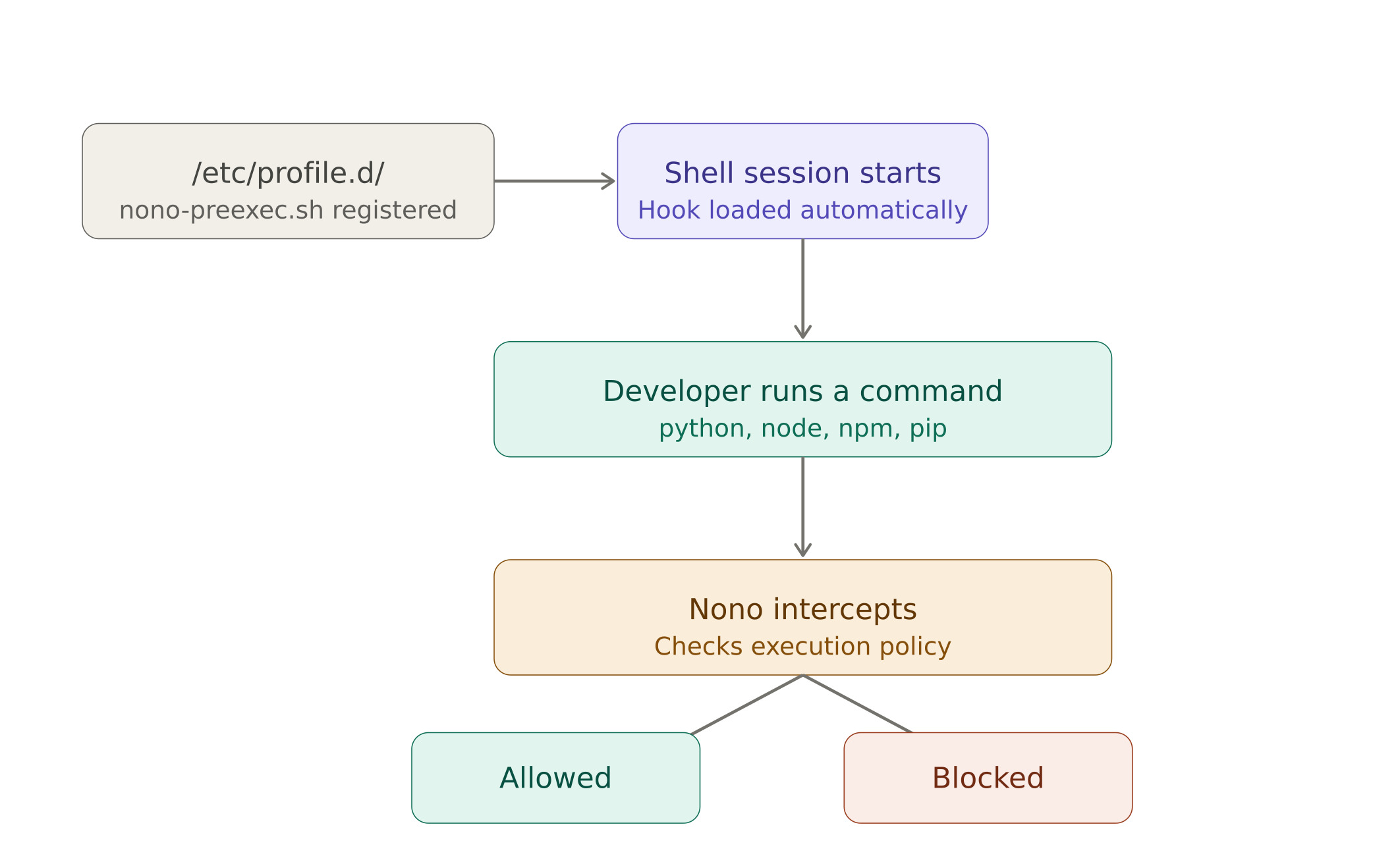
Rather than scan the package before execution, we can use nono to sandbox the execution and prevent malicious behavior. This is especially useful for AI agents that can execute arbitrary code and by the time we learn new attack vectors, we can update the profiles to mitigate the impact. The profile is not limited to restrict file access, it can also restrict network access to avoid exfiltrating data to the internet.